MegaFiles help
Frequently asked questions about MegaFiles — Order & Product Documents. If you can't find your answer, write to sat@ecommsistema.com.
Screenshots are in English; the app follows your Shopify admin language.
What does MegaFiles do?
Three uses you can turn on separately: deliver documents to your customers (invoices, delivery notes, warranties), receive their files (from the product page, the cart or their account) and publish documentation on your products (manuals, data sheets). Files are stored in your store's own Shopify Files library. MegaFiles publishes files you already have: it does not create invoices or connect to your ERP by itself.
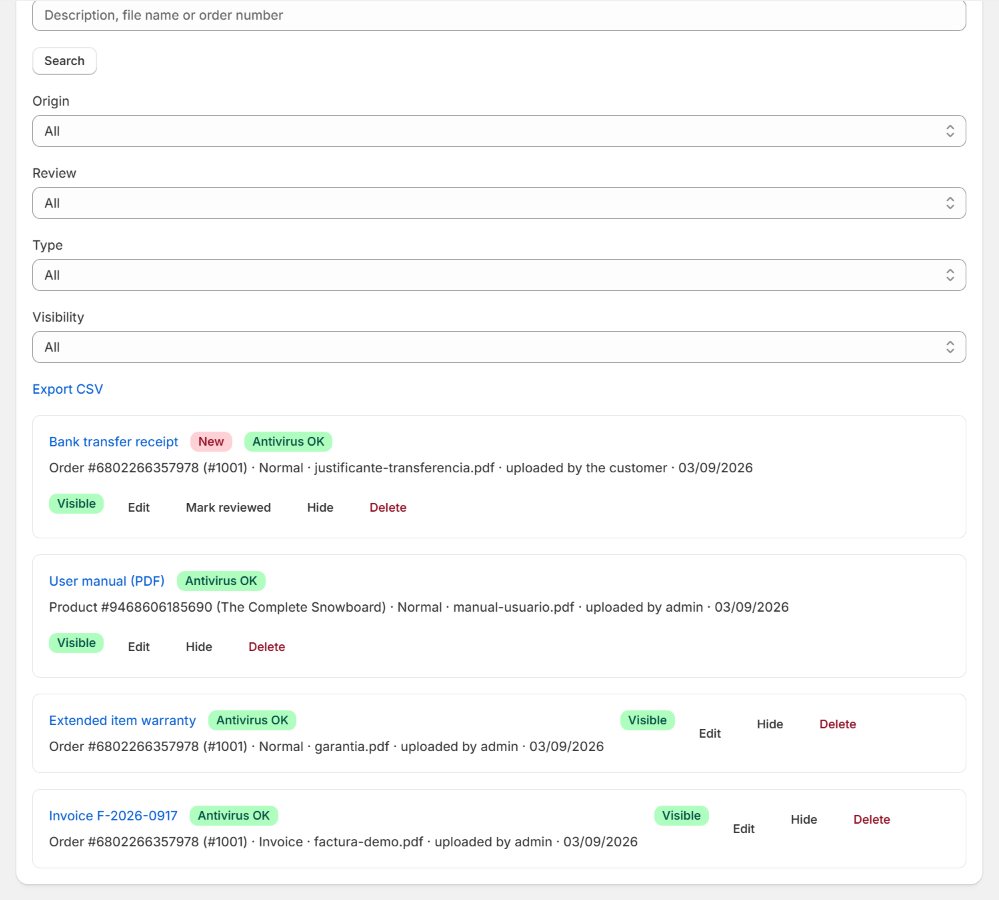
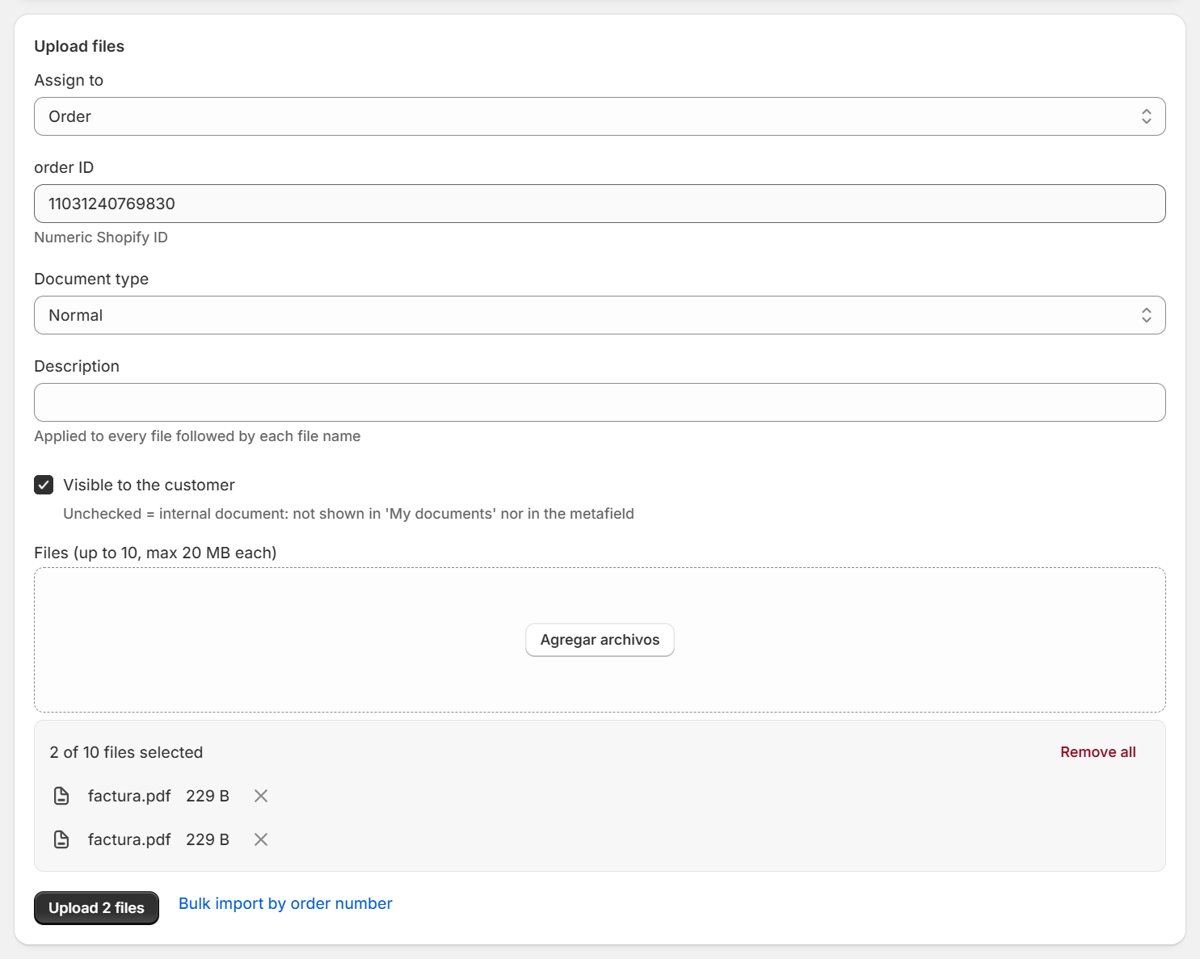
How do I upload a document to an order?
- Open the app (Apps → MegaFiles). The "Upload files" form is at the top of the Files page.
- Choose what to attach it to (order, product or customer) and find it: search the order by number, the customer by name or email, or pick the product. If you open the app from the order page itself, the order is already selected.
- Pick the document type (invoice, credit note, warranty...), write a description, and drag your files onto the upload area or click it to browse.
- Press Upload. The document appears in the list below and, if "Visible to customer" is on, in the customer's account and order page.
- Shortcut from an order: on the order page in the admin, "More actions" → "Upload document (Mega Files)" opens the same form already scoped to that order.
How do I show the app to my customers?
- Open Setup (menu): for each use you turn on it lists what to install, its status and a link. Turning something on in MegaFiles does not make it visible: its block or component also has to be added in Shopify.
- Cart and product page: theme editor blocks ("MegaFiles: upload", "Product documents", "MegaFiles: product upload"). The theme editor links open with the block already placed; you still have to press Save.
- Customer account (new customer accounts only): Settings → Customer accounts → Customize → Edit → Apps → MegaFiles. "My documents" is a page (Add page to → Accounts); "Order documents" goes on Order status and "Link to My documents" on Orders. Add only what you need. To show the page in the account menu: Content → Menus → “Customer account main menu” → Add menu item → Link: Customer accounts → Apps → My documents. The app cannot check these from Shopify: open the account as a test customer. With legacy accounts, customers use the /apps/megafiles page instead.
- Order and customer pages in the admin: add the block once per page type — "Add block" → "Mega Files (order)" / "Mega Files (customer)". Admin blocks are opt-in, they do not appear on their own. The "Upload document (Mega Files)" action does appear by itself, under More actions.
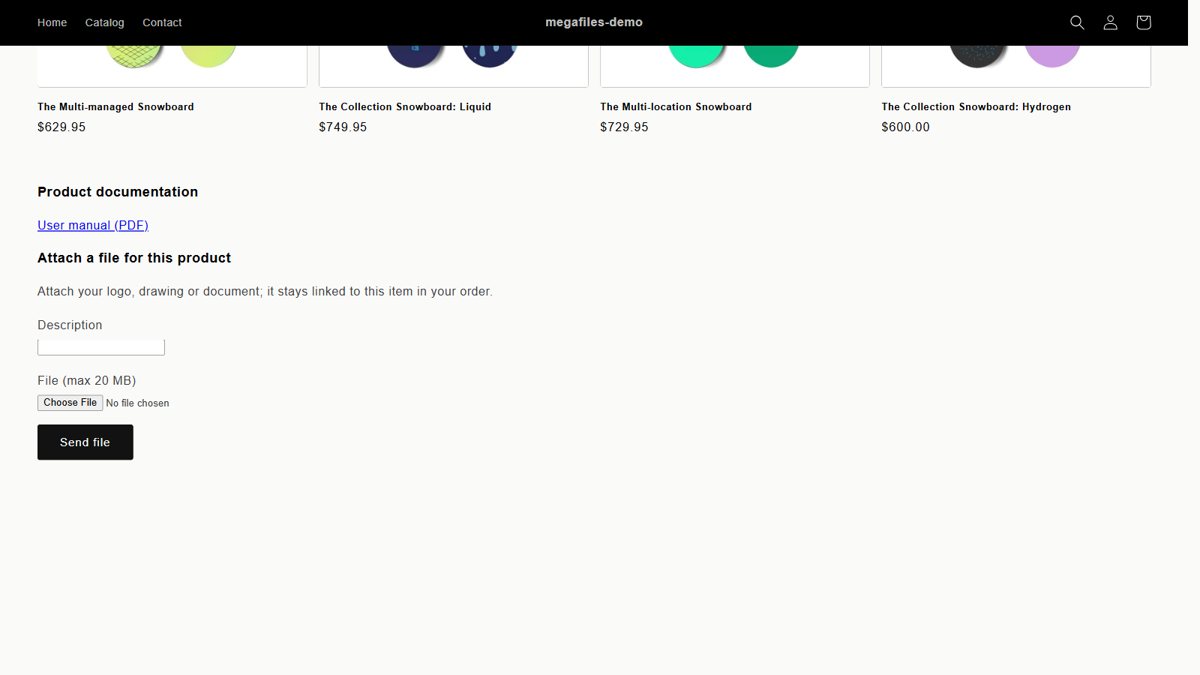
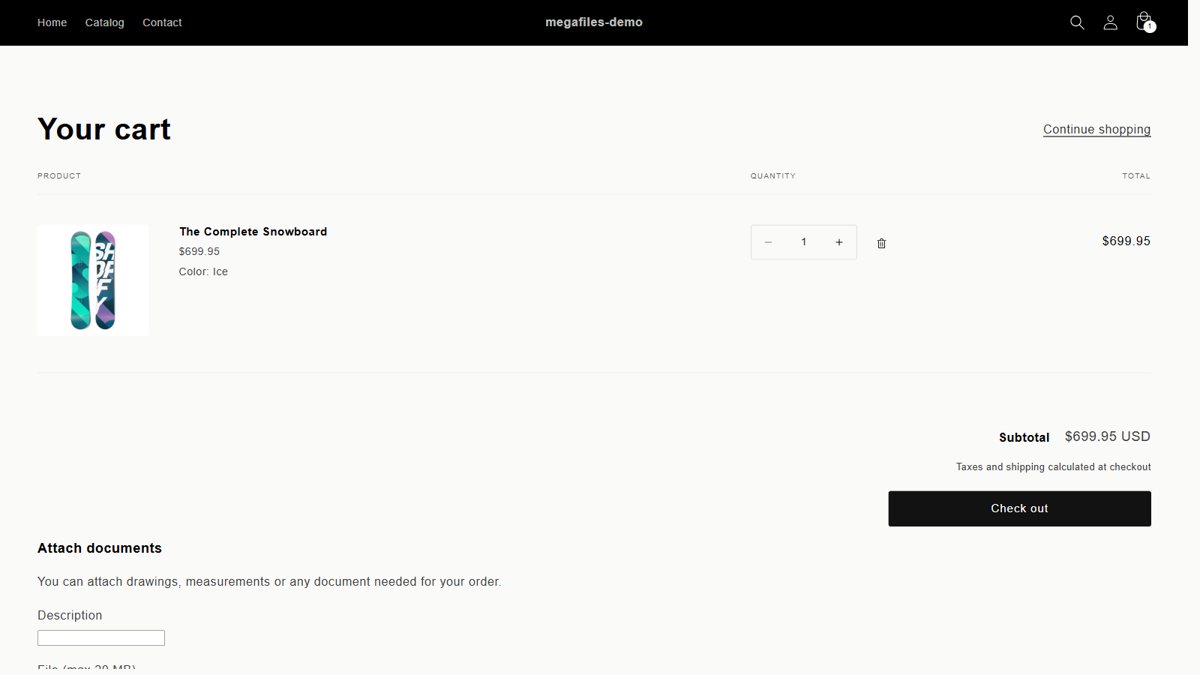
Where can a customer upload files?
Product page, cart, their order page and their account. Each path has its own switch in Settings, so you can enable only the ones you want. Uploads from the product page and the cart do not need the customer to be logged in; the file is linked to the order when the order is placed (from the product page, to the order line of the item it was sent for). Files from carts that never become an order are deleted after the days set in Settings.
Why can't I upload two invoices to one order?
Invoice and credit note are unique per order on purpose: the document you upload is the one the customer downloads. If the order already has one, MegaFiles shows you which one would be replaced and asks you to confirm; only then is the previous file deleted from Shopify Files (it cannot be undone). In Settings you choose which document type is the order invoice and which the credit note, whatever you call them.
File size and file types
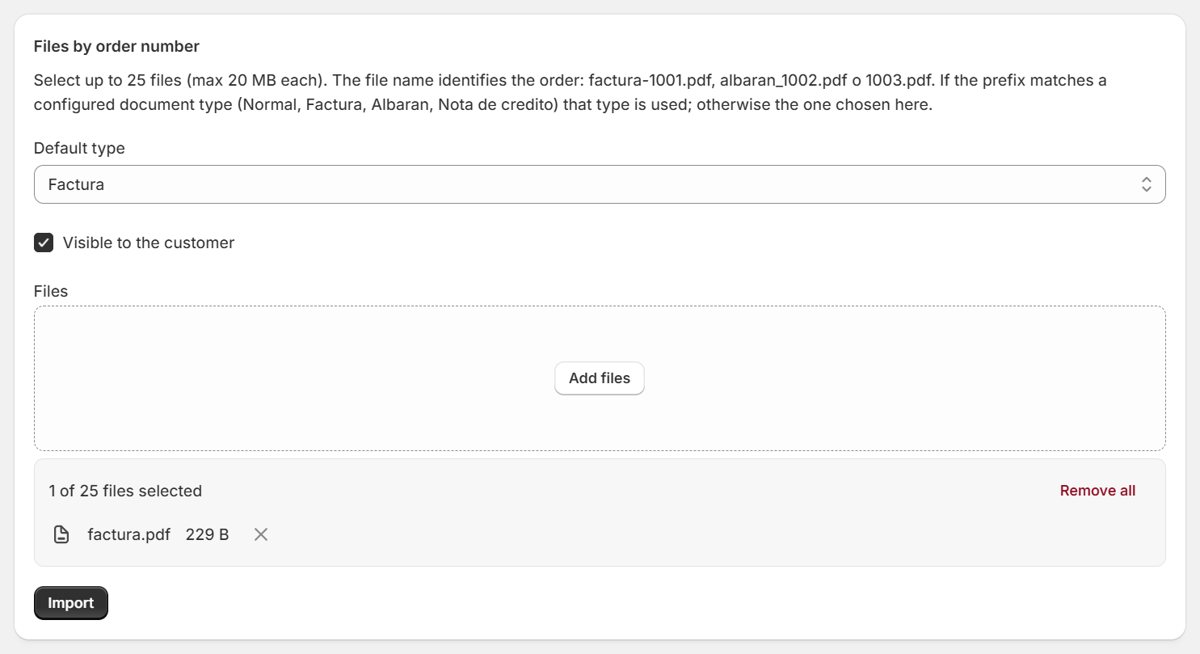
Up to 20 MB per file (the Shopify Files limit for generic files). Per upload: up to 10 files from the Files page, 25 in Import, and one at a time from the customer forms. These are limits per upload, not monthly quotas. Every file is checked before it reaches your store: its content must match its extension and it goes through an antivirus scan; if the antivirus is not available the upload is rejected. Executables, disguised HTML, Office macros, PDFs with JavaScript and archives containing executables are always rejected. In Settings you can accept only some extensions; the screens show the formats that are accepted right now.
Product documentation on the product page
Assign a document to a product and, if it is visible and the "Product documents" block is on the product page, anyone visiting the store can download it, no login needed. In Settings you can restrict which collections accept product documents; products outside them show nothing.
Can downloads be private?
Partly. With "private downloads" enabled, the links customers see go through MegaFiles and only work for the logged-in customer the document belongs to. The original file still lives in Shopify Files at a public, hard-to-guess address: hiding a document or turning a page off does not revoke a Shopify Files link that was already shared. Do not use MegaFiles as confidential storage.
Email notifications and Shopify Flow
MegaFiles can email you when a customer sends a document. Settings shows whether email sending is available and lets you send a test. For cart and product-page uploads the email is sent when the file is linked to the order, not when it is uploaded. Without email, enable tagging and use the Shopify Flow recipe shown in Settings: the order or customer is tagged and Flow sends the notification.
Bulk import and CSV export
The Import page assigns files from your computer to orders by reading the order number from the file name (for example invoice-1001.pdf). First press "Review before importing": you see the order, type and any invoice it would replace, and nothing is uploaded yet. It is a file upload, not an automatic sync with your ERP. The Files page exports the list to CSV (up to 5,000 rows; it tells you if your filter has more).
GDPR, exports and deletion
Data and deletion requests reach MegaFiles from Shopify: when a customer asks your store, you handle it in the Shopify admin and Shopify notifies the app. The Privacy page lists those requests, their status and, for data requests, a file to download and give to the customer. Deletion requests remove that customer's files automatically; there is no manual delete form in the app. Uninstalling deactivates the app, and Shopify's shop deletion request removes all its data.
Pricing and trial
The price, trial and billing are managed by Shopify; the Subscription page shows the conditions of your own plan. If you cancel or the subscription ends, uploads, import, settings and document management close; your customers keep downloading documents already delivered, and Privacy stays available. On development stores there is no real charge.
Support
Write to sat@ecommsistema.com with your store domain and, if you have it, the correlation id shown in the error message.